
Beaver Builder
Bread crumbs / Will Be / Placed / Here / When Available
Multi-Layer Backgrounds
Overview
The Multi-Layer Backgrounds feature lets you stack multiple backgrounds—like colors, gradients, and photos—on any row, column, or Box module. You can mix and match layers to create unique, dynamic designs that stand out.
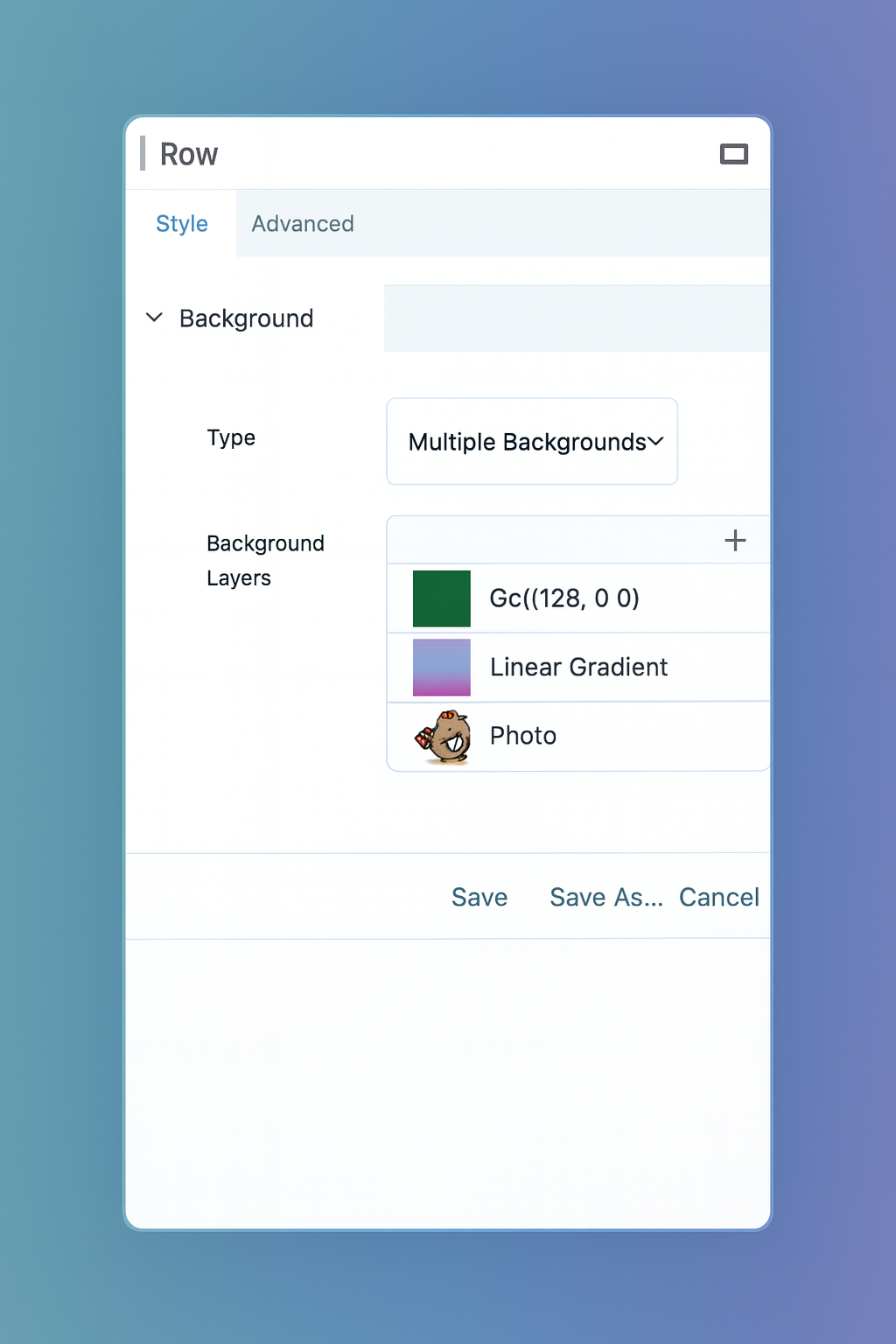
Background Types
You can choose from three background types:
- Color — Adds a solid color background.
- Gradient — Creates a smooth transition between multiple colors.
- Photo — Adds an image, SVG, or external photo link.
Note: Video backgrounds aren’t supported here, since videos can’t be applied through CSS.
Color Backgrounds
Choose a solid background color using the built-in Color Picker. You can adjust hue, brightness, and transparency to achieve the exact tone you want.
Gradient Backgrounds
Add beautiful, layered color transitions with the Gradient option.
You can:
- Add or remove colors. You can add more color stops to the gradient:
- Click anywhere on the gradient range control where there isn’t already a color stop item.
- A new color stop item will appear at that spot.
- Click the new color stop item, then the color swatch, and use the color picker to choose a color for it.
- Adding More Colors
- Adjust angles and blending points.
- You can drag the color stop items left or right to adjust the position of each color in the gradient
- Reorder gradient layers for more depth.
Experiment with multiple color stops to create smooth or dramatic transitions.
Photo Backgrounds
Apply images as backgrounds from:
- Your WordPress Media Library
- Select Image – The Select Image button allows you to choose an image from the WordPress media library.
- WordPress Image Size – Choose the WordPress media image size to use. You can choose from the default thumbnail, medium, large, or full size and any custom image size you have added.
- Replace – Allows you to select a different image from the WordPress Media Library to replace the current background image.
- Remove – Remove the image from the background.
- An external URL URL – Enter or paste the URL of the image you want to use into the URL field.
- An SVG code snippet.
- SVG Code – Enter or paste the SVG code into the SVG Code field for the SVG you want to use. For best results, use simple SVG code, such as:
<svgwidth="100"height="100"xmlns="http://www.w3.org/2000/svg"><circlecx="50"cy="50"r="40"fill="blue"/></svg>
- Background Properties
- The background properties for repeat, position, size and clip to are available for all Photo options (WordPress Media Library, URL, and SVG).
Control how your image appears by adjusting size, position, and repeat settings.
Using Multiple Backgrounds
To apply multiple backgrounds to a row, column, or Box:
- Open the row, column, or Box module settings.
- Go to the Background section.
- Choose Multiple Backgrounds.
- Click the (+) icon to add your first layer (color, photo, or gradient).
- Adjust its settings.
- Click (+) again to add more layers.
- Reorder or delete layers as needed.
- Click Save when you’re done.
Tip: The first background in the list appears on top, and each added layer stacks behind the previous one.
Managing Layers
- Reorder layers by dragging them up or down. You can change the order of the background types any way you like. To reorder the background types, click and drag them up or down the list to the desired positions.
- Duplicate any layer using the copy icon. To duplicate a background type, click the Duplicate icon to the right of the background type you want to duplicate.
- Delete unwanted layers using the trash icon. You can also remove a background type by clicking the Trash icon to the right of the background type you want to remove.
To reveal lower layers (like a photo under a color overlay), adjust the top layer’s transparency (alpha) in the Color Picker.