
Beaver Builder
Bread crumbs / Will Be / Placed / Here / When Available
Launching Beaver Builder
This section walks you through the different ways to open the Beaver Builder editor—whether you’re using the WordPress block (Gutenberg) editor, the classic editor, or navigating from the admin dashboard. You can also access Beaver Builder directly from the front end while logged in.
1. Launch from Gutenberg (Block Editor)
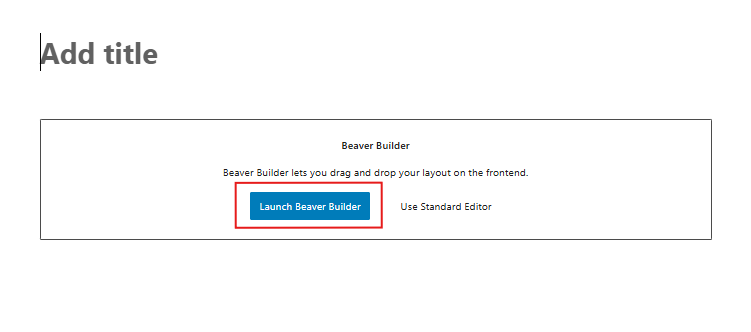
When you create a new page or open an existing one in the WordPress block editor, you’ll see two options at the top of the page:
- Launch Beaver Builder – Opens the drag-and-drop builder.
- Use Standard Editor – Keeps you in the block editor.
Simply click Launch Beaver Builder to start designing your page.
2. Launch from the Classic Editor
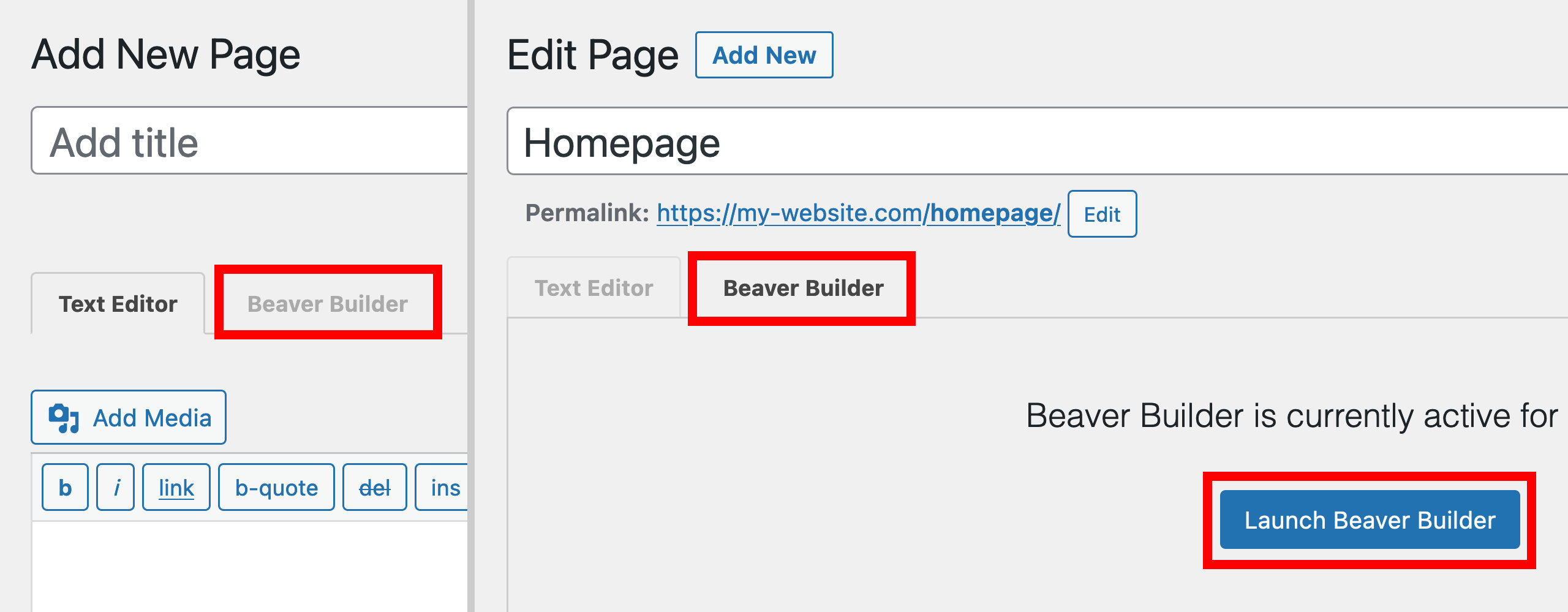
If you’re using the classic WordPress editor:
- Create a new page or open an existing one.
- Click the Beaver Builder tab at the top of the editor.
- Then, select Launch Beaver Builder to begin editing.
3. Launch from the “All Pages” List
From your WordPress dashboard:
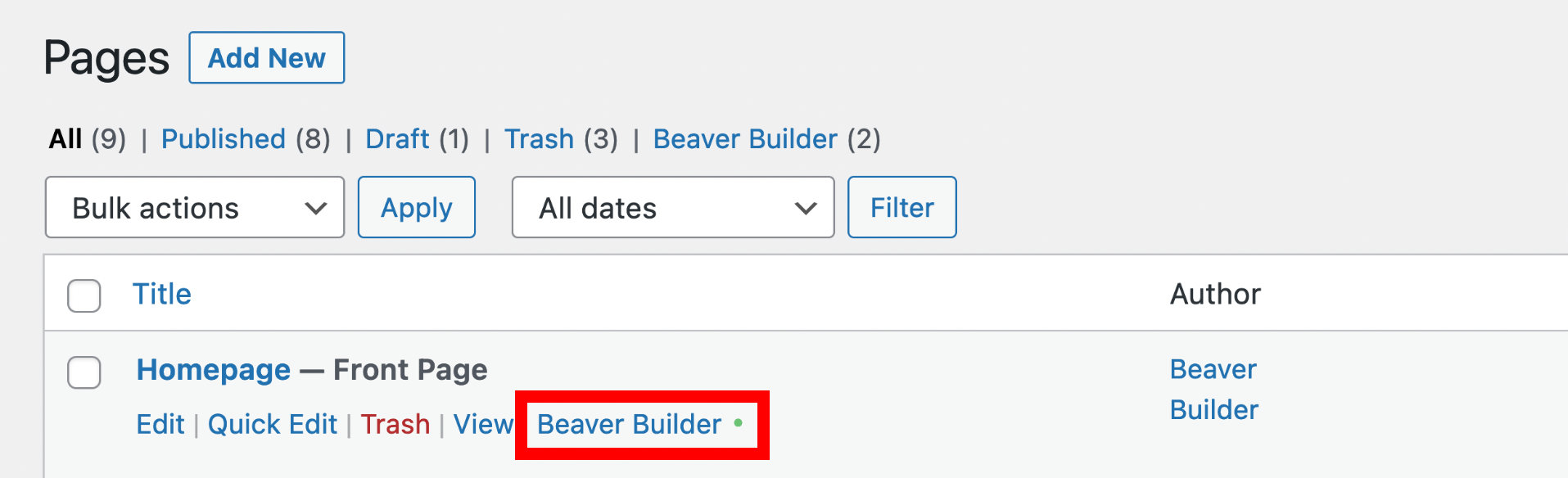
- Go to Pages > All Pages.
- Hover over the page you want to edit.
- Click the Beaver Builder link that appears beneath the page title.
If a Beaver Builder layout already exists, you’ll see a green button next to the link. If not, the button will appear gray or white.
💡 Tip: By default, Beaver Builder is only enabled for Pages. You can enable it for Posts and Custom Post Types in the Beaver Builder Settings.
4. Launch from the WordPress Admin Bar
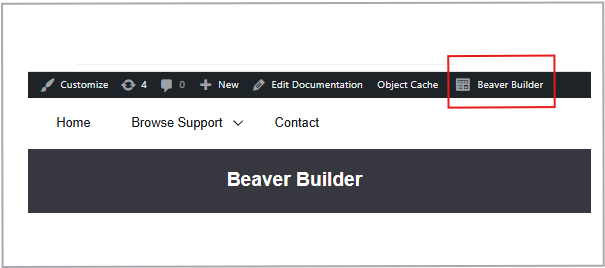
If you’re logged in and viewing your website on the front end, you’ll see the WordPress Admin Bar at the top of the screen.
- Click the Beaver Builder option in the bar to launch the editor for that page.
- As before, a green button means a layout exists, while a gray button means you’re starting fresh.
Pro Tip: Once the Beaver Builder editor is open, you can access a helpful quick-start video. Click the down arrow in the top-left title bar, go to Tools > Help, and watch the tutorial to learn layout-building tips.