
Beaver Builder
Bread crumbs / Will Be / Placed / Here / When Available
The Tools Menu – Your Editing Shortcuts
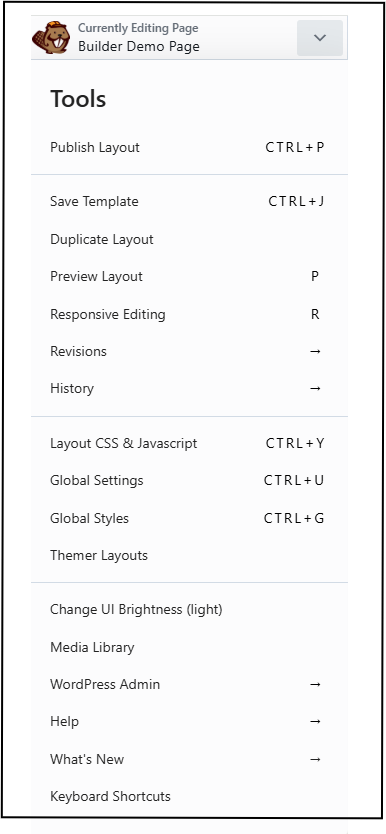
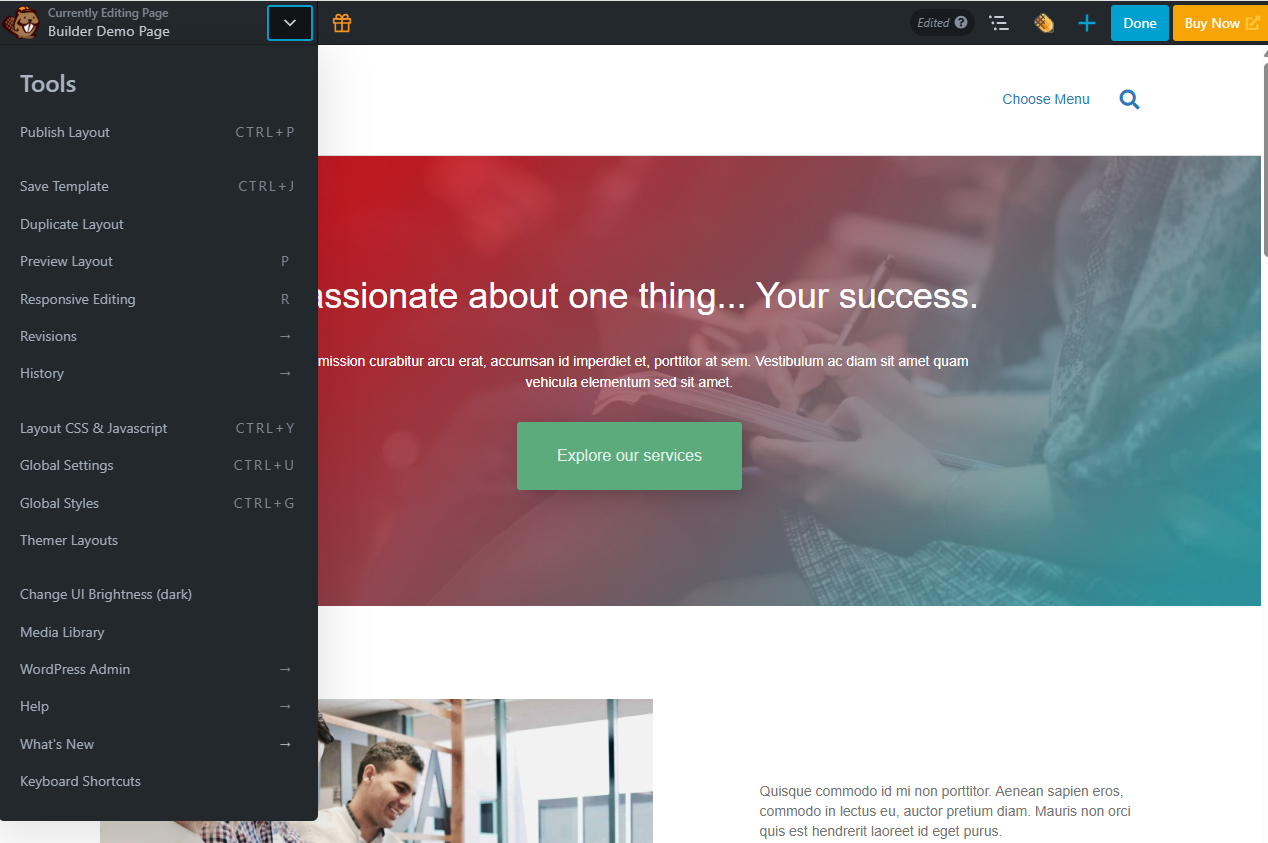
The Tools Menu is where you’ll find advanced options and shortcuts for managing your layout. It’s located in the Top Bar — click the down arrow in the upper-left corner to open it.
Key Tools and Options
- Publish – Make your changes live without leaving the editor.
- Save Template – Save your current layout as a reusable template.
- Duplicate Layout – Copy the entire page (including SEO data) to a new draft. (Avoid using duplicator plugins — they may cause issues.)
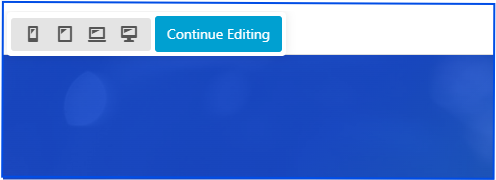
- Preview Layout – See how your page looks on desktop, tablet, or mobile before publishing.
- Responsive Editing – Edit your layout directly in different device views.
- Revisions – Roll back to a previously published version of your page. (Only published versions are saved as revisions.)
- History – Undo or redo changes made during your current session.
Customization Tools
- Layout CSS & JavaScript – Add page-specific styling or scripts directly in the editor.
- Global Settings – Adjust default settings for all pages (can be overridden per page).
- Global Styles – Define site-wide colors, typography, and button styles.
Advanced Options
- Themer Layouts / Themer Override (Beaver Themer required) – Access and manage custom theme layouts.
- Change UI Brightness – Toggle between light and dark mode for the editor.
- Media Library – Quickly access your WordPress media files without leaving the builder.
WordPress Admin Shortcuts
The Tools Menu also includes quick links to common admin areas:
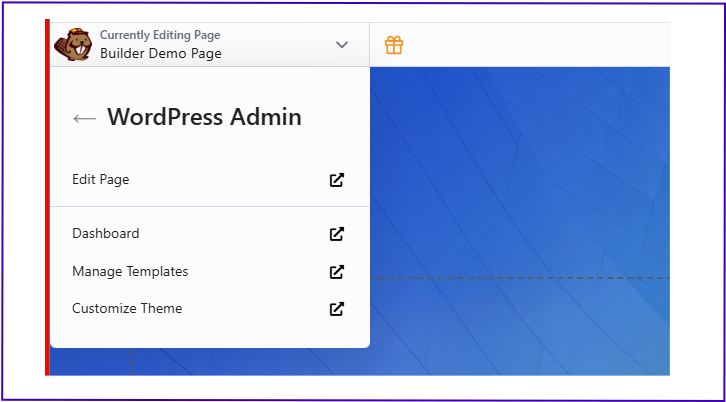
- Edit Page – Access the standard WordPress editor.
- Dashboard – Jump back to the WordPress dashboard.
- Manage Templates – View and edit saved Beaver Builder templates.
- Customize Theme – Open the WordPress Customizer.
Help & Shortcuts
- Help – Watch intro videos, read the knowledge base, or contact support.
- Keyboard Shortcuts – View or customize quick commands for faster editing.
Shortcuts make editing much faster! For example:
- ⌘ + S (Mac) / Ctrl + S (Windows): Save Layout
- ⌘ + P / Ctrl + P: Publish Layout
- ⌘ + Z / Ctrl + Z: Undo
Pro Tip: Use the Tools Menu to streamline your workflow — save templates for future projects, preview layouts across devices, and roll back changes if something doesn’t look right.