
Beaver Builder
Bread crumbs / Will Be / Placed / Here / When Available
Templates
Templates are pre-designed page layouts made up of rows, columns, and content blocks. Templates can be used to speed up development, maintain consistency, and ensure every page follows proven design and usability standards. Templates allow you to start with a structured layout rather than building from scratch. You can use ready-made layouts or save custom designs for reuse across future projects.
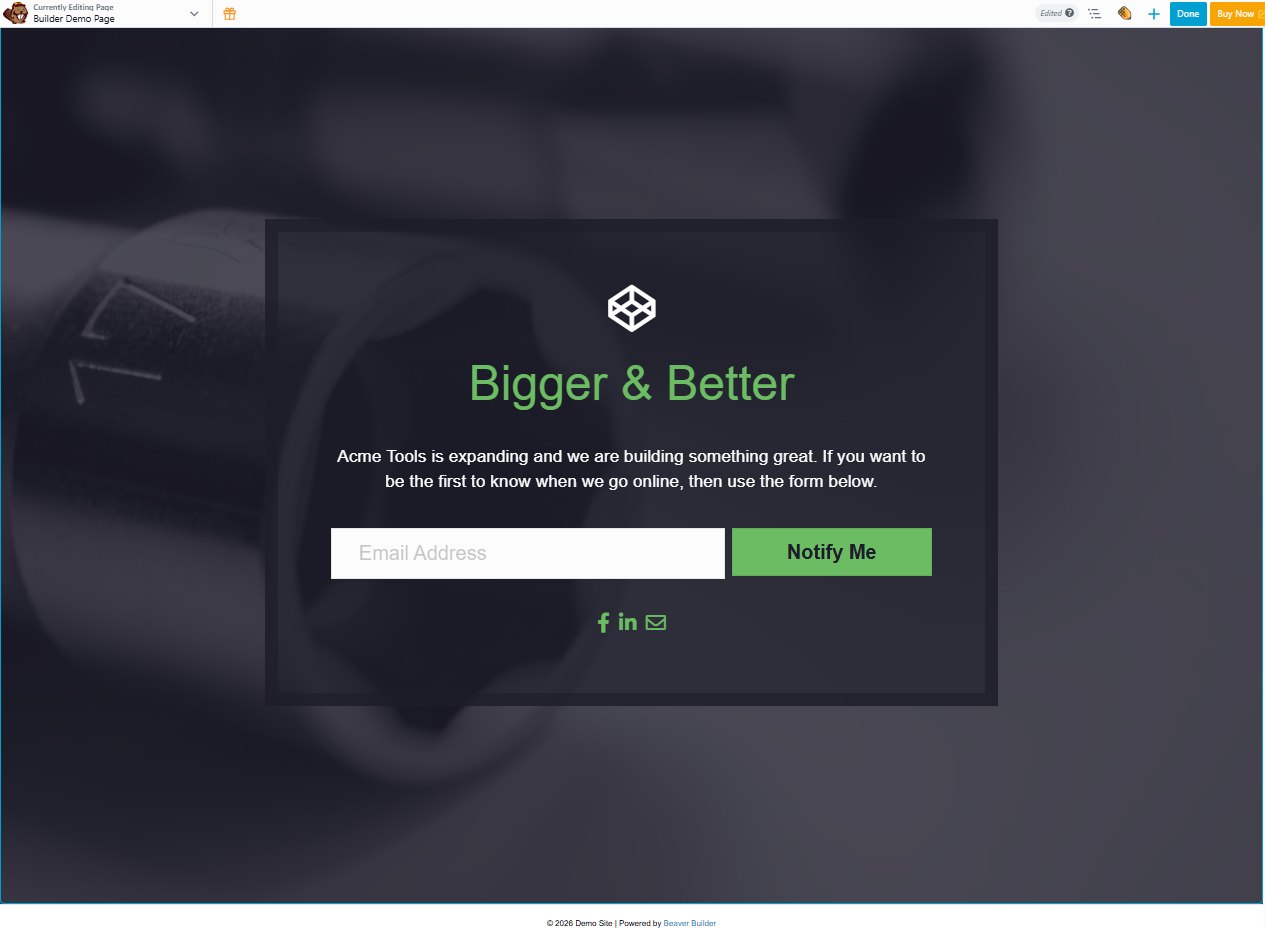
Learn more about prebuilt and saved templates from the articles provided below:
Why Templates Matter
Templates help you:
- Build pages faster and more efficiently
- Maintain a consistent look and structure across your website
- Reduce errors and rework during development
- Reuse approved layouts for future pages
They are especially useful for landing pages, service pages, and content-heavy sections.
Accessing Templates
To access templates:
- Open the page you want to edit.
- Launch the page builder.
- Click the Plus (+) icon in the top bar to open the content panel.
- Select the Templates tab to view available layouts.
Template Categories
Templates are organised into groups to make selection easier. Depending on your setup, you may see some or all of the following:
Landing Page Templates
Designed for marketing and campaign pages focused on clear messaging and calls to action.
Content Page Templates
Used for standard pages such as About, Services, or Information pages.
Micro Page Templates
Simplified layouts intended for short, focused content sections or single-purpose pages.
Saved Templates
Custom layouts created and saved for reuse across multiple pages or projects.
Third-Party Templates
Additional templates provided by installed plugins or extensions, used the same way as built-in templates.
Applying a Template to a page or post
To use a template:
- Open the Templates tab.
- Click the template you want to use.
- Choose whether to replace existing content or add the template to the current layout.

4. Once applied, you can adjust rows, columns, and content to suit your needs and save changes.
Managing Templates
- You cannot remove an entire template once it is applied.
- You can delete individual rows, columns, or content blocks.
- Using a Blank template will clear all content from the page if a fresh start is needed.