
Beaver Builder
Bread crumbs / Will Be / Placed / Here / When Available
The Content Panel – Your Building Blocks for Pages
The Content Panel in Beaver Builder is where you’ll find everything you need to design your page: rows, columns, modules, templates, saved content, reusable blocks, and WordPress widgets. It’s the toolbox that helps you build and customize your layouts visually — no coding required.
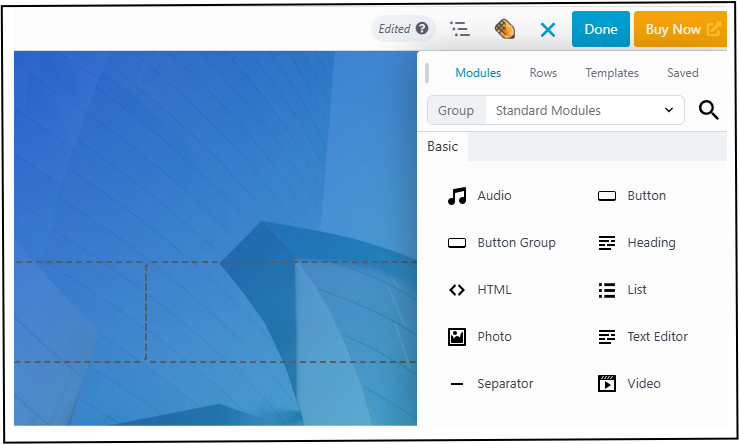
Opening the Content Panel
To open the Content Panel, click the ( + ) icon in the Top Bar. Click the ( x ) to close it when you’re done.
💡 If the panel is pinned to the left or right side of your screen, the +/x icons won’t appear. Instead, use the small show/hide button at the bottom.
Adding Content to Your Page
You can use the Content Panel to quickly add and customize the building blocks of your layout:
- Templates – Pre-built page designs to jumpstart your project.
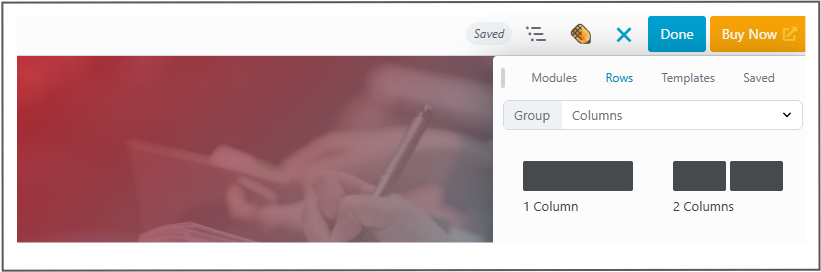
- Rows & Columns – Structure your page layout.
- Modules – Add elements like text, images, buttons, sliders, and more.

Just drag and drop the items into your page to start building.
Moving and Pinning the Panel
Click and hold the drag handle (top of the panel) to move it anywhere on your screen.
- Pin it to the left or right for easier editing.
- Drag it back to the center to unpin.
⚠️ When you pin the Content Panel, the Settings Window will also be pinned automatically.
Navigating Groups and Tabs
The Content Panel is organized into tabs, and each tab contains groups of related items:
Saved Tab – Find rows, modules, or layouts you’ve saved for reuse.
Modules Tab – Access elements like headings, buttons, images, and more. Use the search bar to find modules quickly.
Rows Tab – Choose from prebuilt row layouts to structure your design.
Templates Tab – Browse full-page or section templates to speed up design.